Your first session
Lodgi Sight brings your Lodgify portfolio into one workspace for performance reporting, availability checks, forecasts, reservation details, accounting reports, and local market comparisons. Lodgify remains the place to manage the underlying bookings, rates, and stay rules.
- Visit Create account. Enter your Full name, Workspace name, email, password, and matching password confirmation.
- Complete any email confirmation shown by the app, then sign in. Use an inbox you can access: account email and password changes require verification.
- Choose Start free trial if it is offered, or select a monthly plan and complete checkout.
- Connect your own Lodgify API key when prompted. A new customer workspace starts without sample rentals; your portfolio appears after a successful sync.
- Open Overview, choose a reporting period, and check that your rentals and bookings have loaded.
How the free trial works
Eligible accounts can start a five-day trial without a payment card. The trial includes all features and a limited AI allowance. Settings → Billing shows the remaining usage and trial end date. Trial recharges are not offered. Choose a paid subscription if you need continued access or a paid plan’s AI allowance.
The card-free trial does not automatically become a paid subscription. When it ends, choose and purchase a plan to continue. The trial is available once per eligible email; changing an email is not a way to restart it.
Finding your way around
The workspace menu contains Overview, Calendar, Forecasting, Reservations, Accounting, and Properties. Integrations manages the Lodgify connection. Open your profile card at the bottom of the sidebar to reach Settings, with My account and Billing tabs. On smaller screens, use the menu button to open the sidebar.
Reading data is different from changing it. Lodgi Sight’s current Lodgify connection reads your portfolio. It does not automatically change prices, minimum stays, availability, messages, or reservations. Review recommendations and make any chosen changes in Lodgify.
Connect, refresh, or disconnect Lodgify
Connect your API key
- Sign in to your Lodgify account, go to Settings → Public API, and copy your Public API key. If you cannot find the key or your account’s API access is unavailable, ask Lodgify support for help.
- In Lodgi Sight, choose Connect Lodgify in the top bar, or open Integrations → Connect.
- Paste the key into the API key field. This is your Lodgify API key, not your Lodgify password.
- Select Connect & sync. Keep the page open while the initial import runs.
- Check the success message and the Connected status in Integrations. The message summarizes the listings, reservations, blocks, and priced nights that were imported.
Lodgi Sight imports properties, reservations, calendar blocks, and nightly rate information supplied by Lodgify, including channel reservations available through that account. Some channels provide less detail than others. A successful connection does not guarantee that every booking has an itemized fee or tax breakdown.
Keep the portfolio current
The refresh icon in the top bar runs a new Lodgify sync. Use it after editing a booking, rate, or stay rule in Lodgify. Integrations displays the automatic refresh interval; the standard interval is five minutes. Check the sync status and any warning message before relying on the displayed data. Refreshing Lodgify data does not consume AI usage.
Replace a key or reconnect
Open Integrations → Reconnect (or Reconnect Lodgify), enter the replacement key, and choose Connect & sync. Use this after rotating your key or correcting an invalid connection. Wait for a successful sync before assuming the new key is working.
Disconnect
- Open Integrations and choose Disconnect.
- Read and confirm the notice. The saved key and synced portfolio data are removed from your active Lodgi Sight workspace.
- The workspace returns to an unconnected state and asks for a key again. Close the connection window if you want to stay disconnected.
Disconnecting stops Lodgi Sight’s connection; it does not delete your rentals from Lodgify or cancel your Lodgi Sight subscription. It also does not revoke the original key in Lodgify. Manage or revoke that key in Lodgify if you no longer want it to be usable.
Keep your key private. Treat it like a password. Enter it only in the connection form, not in the assistant or support messages. Lodgi Sight encrypts saved keys in customer workspaces and does not include them in AI prompts.
Overview: understand performance
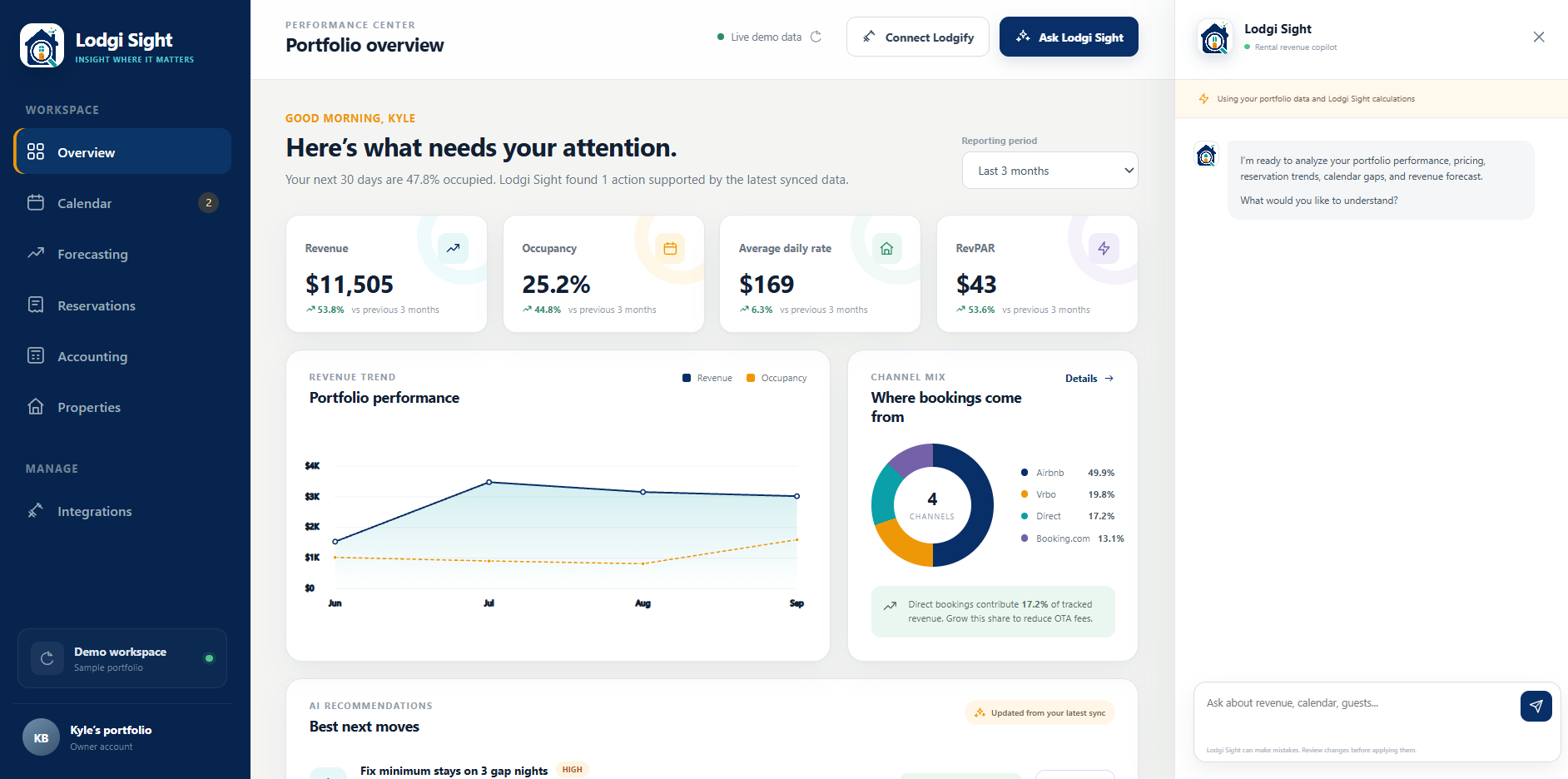
Start here to see portfolio totals, trends, channel mix, recommendations, and a property-by-property comparison.
- Select Overview.
- Choose Reporting period: Last month, Last 3 months, Last 6 months, or Last year.
- Read the four main metrics together. The comparison below each metric uses the immediately preceding period of the same length.
- Review Portfolio performance, Where bookings come from, and Best next moves.
- Use Details to open Reservations, or View properties to inspect individual rentals.
| Metric | What it means |
|---|---|
| Revenue | Active, non-cancelled reservation amounts allocated to nights inside the reporting period. A stay crossing the date boundary contributes only its overlapping share. |
| Occupancy | Booked nights ÷ sellable nights × 100. Owner blocks and closed nights reduce the sellable inventory. |
| Average daily rate (ADR) | Allocated revenue ÷ booked nights. |
| RevPAR | Allocated revenue ÷ sellable nights. It combines the effects of rate and occupancy. |
| Channel mix | Each booking channel’s share of allocated revenue in the selected period. |
The greeting’s next 30 days occupancy is a forward-looking snapshot. It covers a different time window from the historical reporting-period cards. Revenue is reservation-based; it is not a bank payout or profit figure.
Best next moves highlights issues supported by synced data, such as restrictive stay rules or listing information that needs attention. No recommendation can be a valid result when the data does not show an actionable issue. Opening a contextual AI analysis can consume usage; displaying the dashboard and its locally calculated metrics does not.
View an Overview example
Calendar: find gaps and opportunities
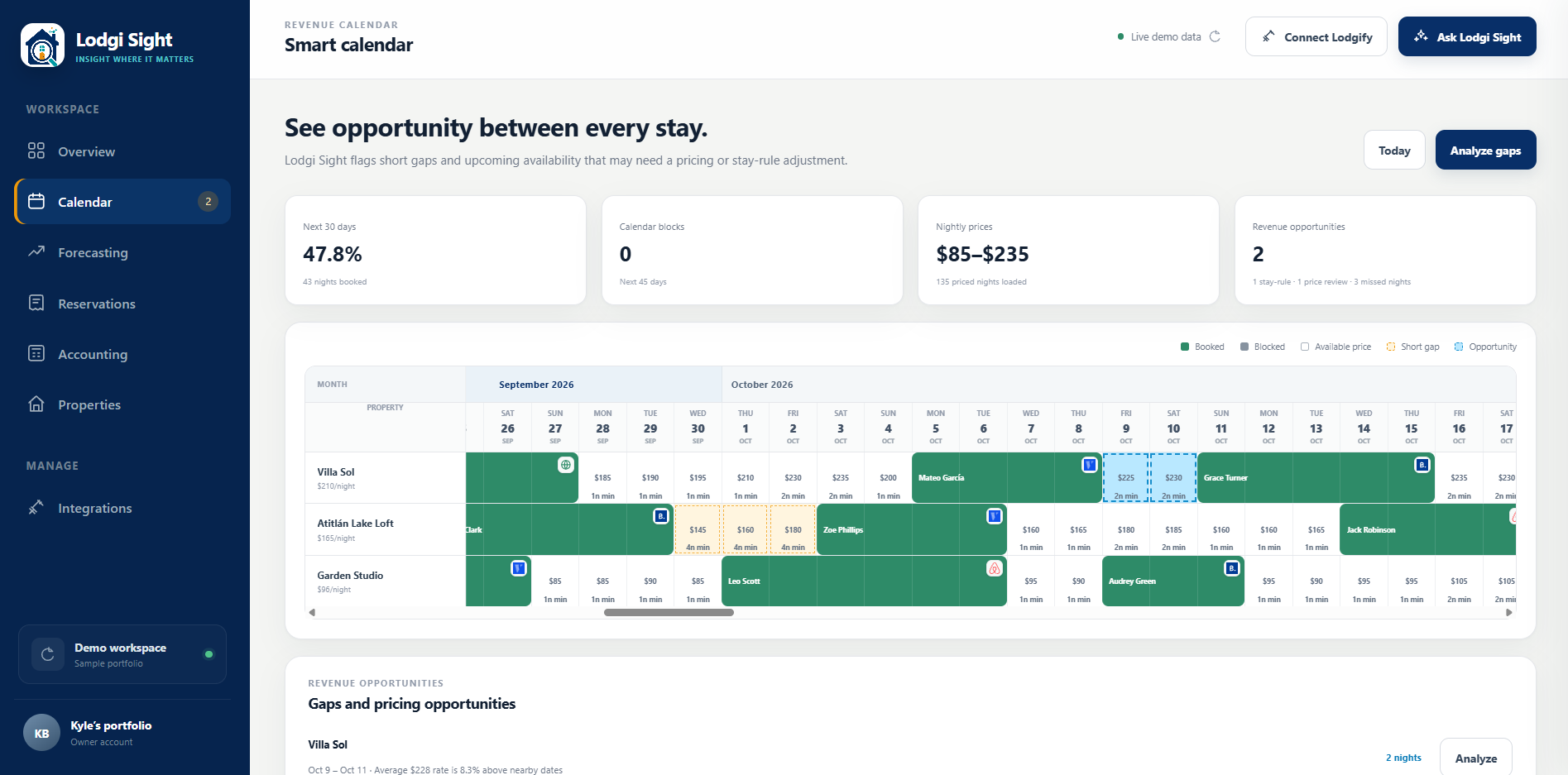
The calendar puts rentals in rows and dates in columns. It combines stays, blocked dates, available nightly prices, and minimum-stay rules. Scroll horizontally to inspect other dates and select Today to return to the current date.
- Green — Booked: an imported reservation occupies those nights.
- Gray — Blocked: Lodgify identifies the date as blocked or closed.
- Available price: an open night with a rate and, where supplied, its minimum-stay requirement.
- Orange — Short gap: an opening between stays whose minimum-stay rule is longer than the gap.
- Blue — Opportunity: a near-term short opening where the minimum stay fits, but the average price is at least 5% above nearby dates.
Short-gap checks focus on openings of one to four nights bracketed by stays or unavailable dates. A blank or unpriced date is not proof that the night is free: confirm that the relevant rate and availability data were imported.
Work through an opportunity
- Review the summary cards and Gaps and pricing opportunities list.
- Find the rental and dates on the calendar. Read the nightly price and minimum-stay values.
- Select the item’s Analyze action, or Analyze gaps for a broader assistant review. AI-powered analysis uses your allowance.
- Decide whether a rate or minimum-stay change makes sense, apply it in Lodgify, and refresh Lodgi Sight.
Example: a three-night opening with a four-night minimum cannot accept a stay confined to that gap. Reviewing the minimum stay may be more useful than reducing the price.
View a Calendar example
Forecasting: separate bookings from estimates
- Open Forecasting.
- Choose All rentals or one rental.
- Select Next 6 months or Next 12 months.
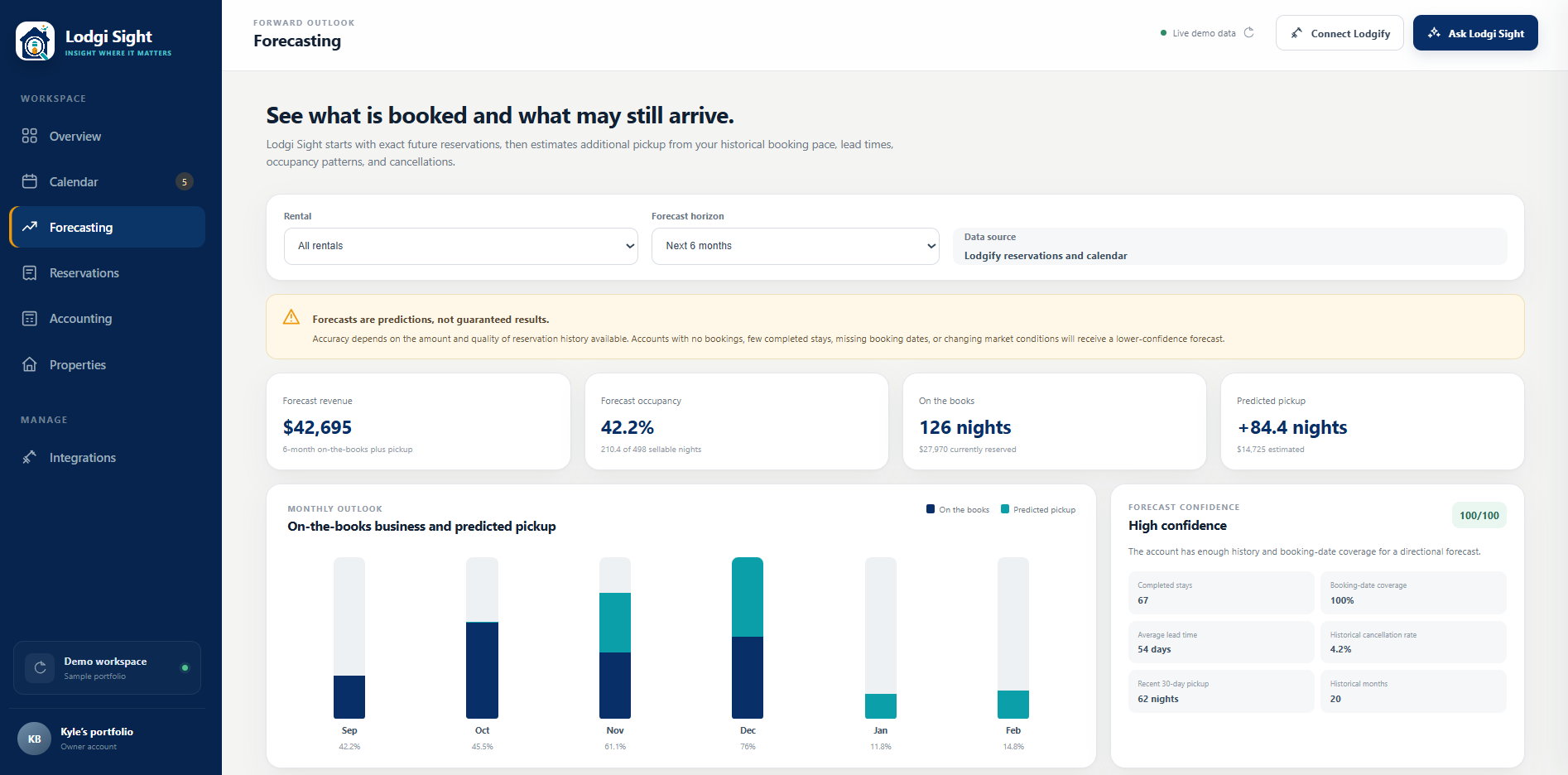
- Review the summary, monthly chart and table, forecast confidence, and the methodology shown below the results.
On the books represents current future reservations. Predicted pickup estimates additional bookings that may still arrive. Forecast revenue and Forecast occupancy combine the two. The chart uses separate colors for booked nights and predicted pickup so you can see how much of the outlook remains uncertain.
The calculation uses historical booking pace, lead times, occupancy patterns, and observed cancellations. The confidence panel helps you assess the history behind the estimate, including completed stays and booking-date coverage. A low-confidence result or a limited-history warning means you should place more weight on confirmed business.
Forecasts are estimates. They are not guaranteed revenue or bookings. Running and filtering the forecast is a local calculation and does not consume AI usage; asking the assistant to interpret it may do so.
View a Forecasting example
Reservations: review each booking
- Open Reservations to see the imported booking list.
- Search by guest, rental, channel, reservation identifier, or status. Clear the search to show the full list again.
- Select a reservation row to open Reservation details. Keyboard users can focus a row and press Enter.
- Review the rental, stay dates, guest counts, status, and booking breakdown. Close the details window to return to the list.
Where Lodgify supplies them, details include room charges, fees, taxes, discounts, paid and outstanding amounts, security deposits, payment transactions, scheduled payments, and damage-protection entries. If the channel supplies only a total, Lodgi Sight explains that itemized details are unavailable rather than inventing them.
Use Analyze reservations to ask the assistant about performance and channel mix. Browsing, searching, and opening reservation details do not use AI allowance; an AI-powered analysis does. Booking corrections and guest/payment actions should be handled in Lodgify or the appropriate booking channel.
Accounting: generate, schedule, and edit reports
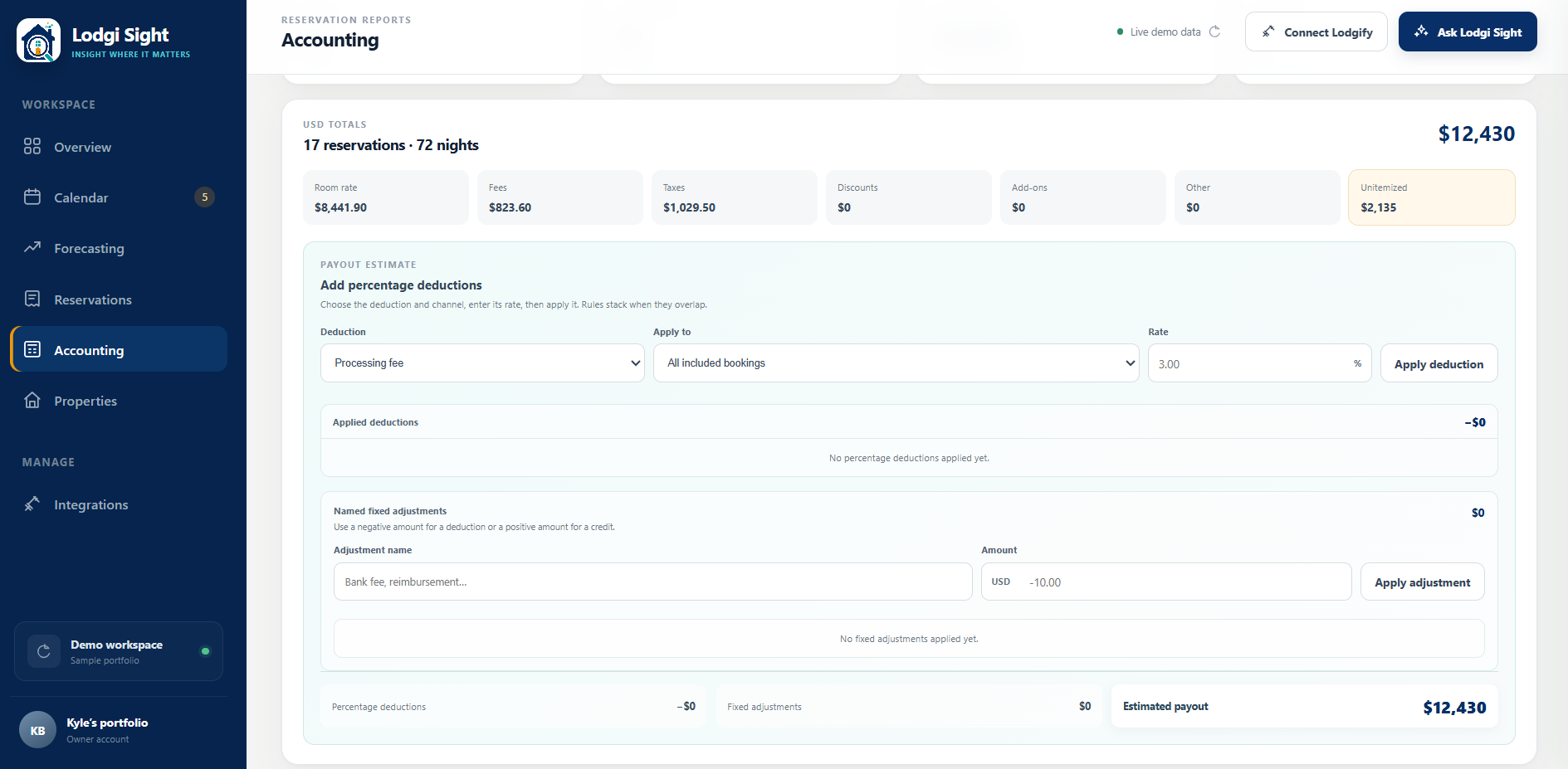
Create a report on demand or set up automatic monthly reports. Save reports to return to them later, revise payout adjustments, and download a PDF or CSV.
Generate a report
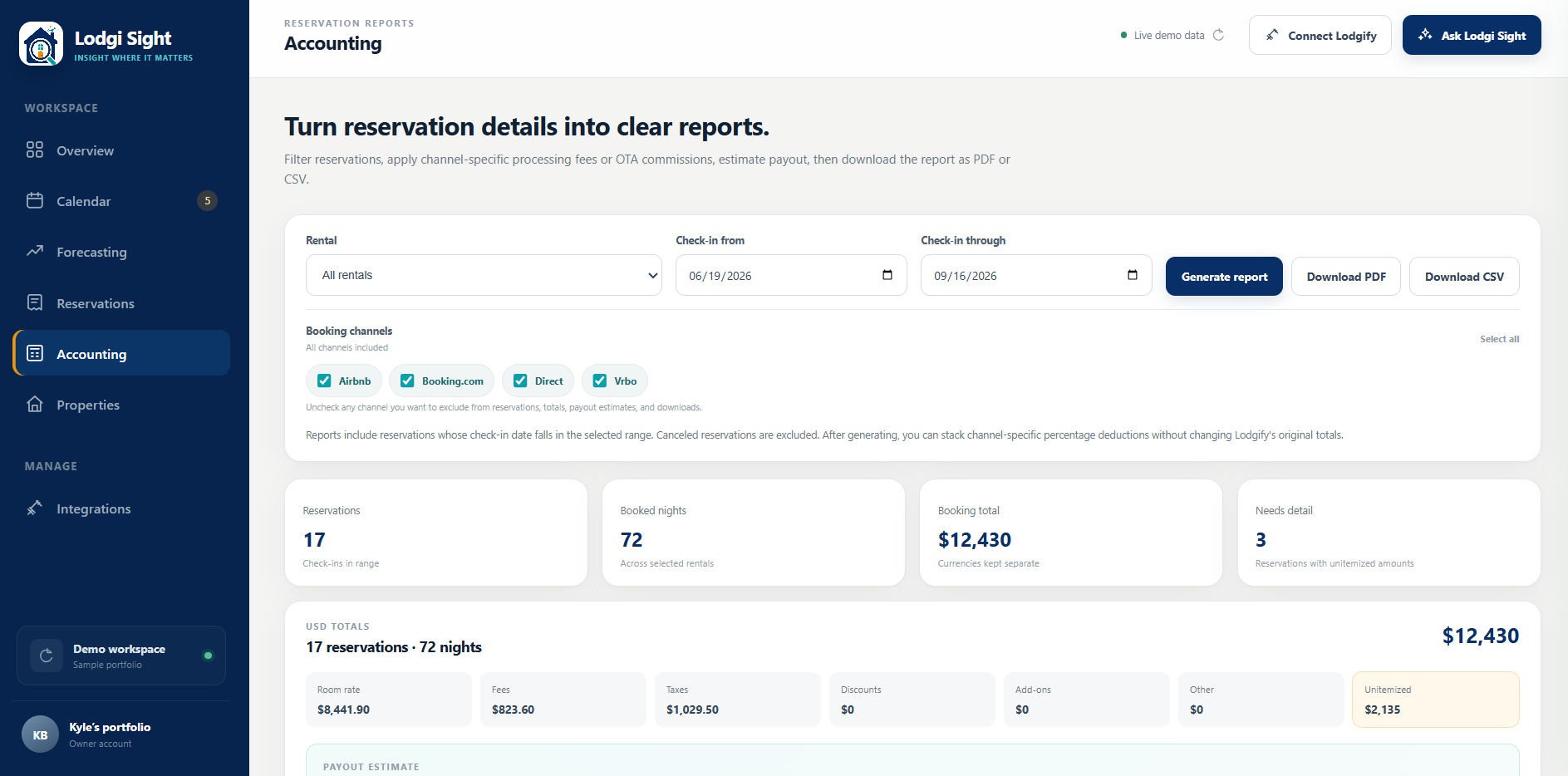
- Open Accounting and choose a rental or All rentals.
- Choose a Date basis: Check-in dates or Stay dates (allocated).
- Set the start and end dates. The end date must be on or after the start date.
- Select the booking channels to include. Uncheck channels you want excluded, or use Select all.
- Select Generate report. Review reservations, booked nights, booking totals, and the count marked Needs detail. Active matching deduction presets are applied automatically.
Check-in dates includes whole reservations whose check-in falls within the selected range. Stay dates (allocated) includes stays overlapping the range and allocates booking totals and itemized amounts according to the nights inside it. For example, if two nights of a four-night stay fall in the range, the report includes two nights and half of that booking’s amounts.
Both options exclude cancelled reservations and keep currencies separate. Room rate, fees, taxes, discounts, add-ons, and other amounts come from supplied booking details; the remainder is shown as Unitemized.
Add percentage deductions
- In the relevant currency’s Payout estimate, choose a deduction type such as a processing fee or OTA commission. OTA means online travel agency.
- Choose Apply to: all included bookings or a specific included channel.
- Enter the percentage and select Apply deduction.
- Review Applied deductions. Remove an incorrect rule before applying its replacement.
Each percentage applies to the matching booking total, not only the room-rate component. Overlapping rules stack: two rules affecting the same booking both deduct from its original total. They do not compound one after another.
Add a fixed deduction or credit
Under Named fixed adjustments, enter a descriptive name and an amount, then select Apply adjustment. Use a negative amount for a deduction and a positive amount for a credit. You can add multiple adjustments and remove individual entries.
Example: for $1,000 of included bookings, a 3% deduction removes $30. Adding a fixed “Bank fee” of −$10 gives an estimated payout of $960.
Estimated payout = booking total − percentage deductions + fixed adjustments.
These are your estimates. They change neither Lodgify’s original booking amounts nor the Overview revenue metric, and they are not a reconciliation of actual bank transfers.
Save recurring deductions as presets
- In Presets, select Add preset.
- Enter a Preset name, choose the deduction type and Booking channel, and enter the percentage Rate. Choose All included bookings if the rule should apply across included channels.
- Keep Apply automatically checked and select Save preset.
Active matching presets apply when a new report is generated, including by a recurring schedule. Review the applied rules before adding manual deductions so you do not count the same fee twice. Changing a preset does not rewrite an already saved report.
Save a report
- Generate a report and apply the payout deductions or credits you want to include.
- Select Save report, enter a meaningful Report name, and confirm with Save report in the form.
- Find it in Saved reports. Select Open to review it again, or use its PDF or CSV button to download it.
Saving preserves the report’s reservation data and original generation date. Later Lodgify syncs and preset changes do not change that saved snapshot. Save a report you want to keep; an unfinished, unsaved preview is not a saved report.
Edit an existing saved report
- In Saved reports, select Open on the report, then choose Edit report.
- Update the Report name if needed.
- Revise its payout adjustments: remove or add percentage deductions, and add or remove named fixed deductions or credits. Use Apply deduction or Apply adjustment for each new entry.
- Review the estimated payout and select Save changes. Select Cancel instead to discard the edits.
Edits update the modification date separately from the original generation date. This works for reports you saved manually and reports created by a schedule.
What stays preserved: editing changes the report name and payout adjustments, not the original reservation rows, Lodgify booking totals, date basis, or reporting filters. To include newly synced bookings, different dates, rentals, or channels, generate and save a new report.
Schedule reports to generate automatically
- In Recurring reports, select Add schedule and enter a Schedule name.
- Under Generate report, choose First day of each month or Last day of each month.
- Choose a Rental or All rentals, select the Date basis, and choose the booking channels to include.
- Keep Keep this schedule active checked, then select Save schedule.
- Check the schedule’s Next run. Once a run completes, find the generated report in Saved reports, where you can open, edit, and download it.
First day of each month reports on the full previous calendar month and is the recommended option for a completed monthly period. For example, a run on November 1 covers October 1–31. Last day of each month reports on the current calendar month using the data available when it runs.
The schedule uses the browser’s time zone when you save it. Active matching deduction presets are applied during generation. Completed reports are saved automatically with the reporting month in their names, so you do not need to leave the Accounting page open.
Change, pause, or remove a schedule
Select Edit beside a schedule to change its name, timing, rental, date basis, or channels, then select Update schedule. Use Pause to stop future runs or Enable to resume from the next scheduled occurrence. Use Delete when you no longer need that schedule. Manage the generated reports separately in Saved reports.
Export PDF or CSV
Select Download PDF for a formatted report or Download CSV for spreadsheet work. Saved reports also have their own PDF and CSV buttons. After editing a saved report, select Save changes before downloading the updated version.
Downloads reflect the report’s rentals, dates, date basis, channels, and applied adjustments. Apply each deduction or credit using its button; a value merely typed into a field is not yet part of the report. After changing filters for a new report, select Generate report again and review the result before saving or downloading.
Generating reports, running recurring schedules, calculating deductions, saving or editing reports, and downloading PDF or CSV files do not consume AI usage. Asking an AI feature to analyze the information can consume usage.
Why totals can differ from Overview: Accounting’s check-in basis counts whole bookings, while Overview allocates revenue across overlapping nights. Accounting’s stay-date basis also allocates by overlapping nights. Check the date basis, period, rentals, channels, and generation date when comparing figures; payout adjustments are separate from revenue.
View Accounting and deduction examples
Properties: review each rental
Open Properties for a card for each imported rental. Cards show its image, location, bedroom and guest-capacity information, a starting rate, revenue, occupancy, ADR, and listing health where available.
Use Review portfolio to ask the assistant which rental needs attention. Use Compare local market on a specific card for public market evidence. Reading the cards does not consume AI usage; new AI analyses and market searches can.
Understand listing health
Lodgi Sight’s listing-health estimate measures listing completeness. It is not a Lodgify rating, a guest-review score, a market ranking, or a promise of better revenue. The estimate checks the fields received for the rental:
- Name and description completeness.
- A cover photo and location details, including coordinates where available.
- Room information, a positive base or minimum price, currency, and active listing status.
A low score suggests reviewing missing information in Lodgify and refreshing the portfolio. A missing value can also mean Lodgify did not supply that field. The card’s starting rate is not necessarily the rate for a particular stay; use the Calendar and market comparison’s stated dates for that.
Compare local market
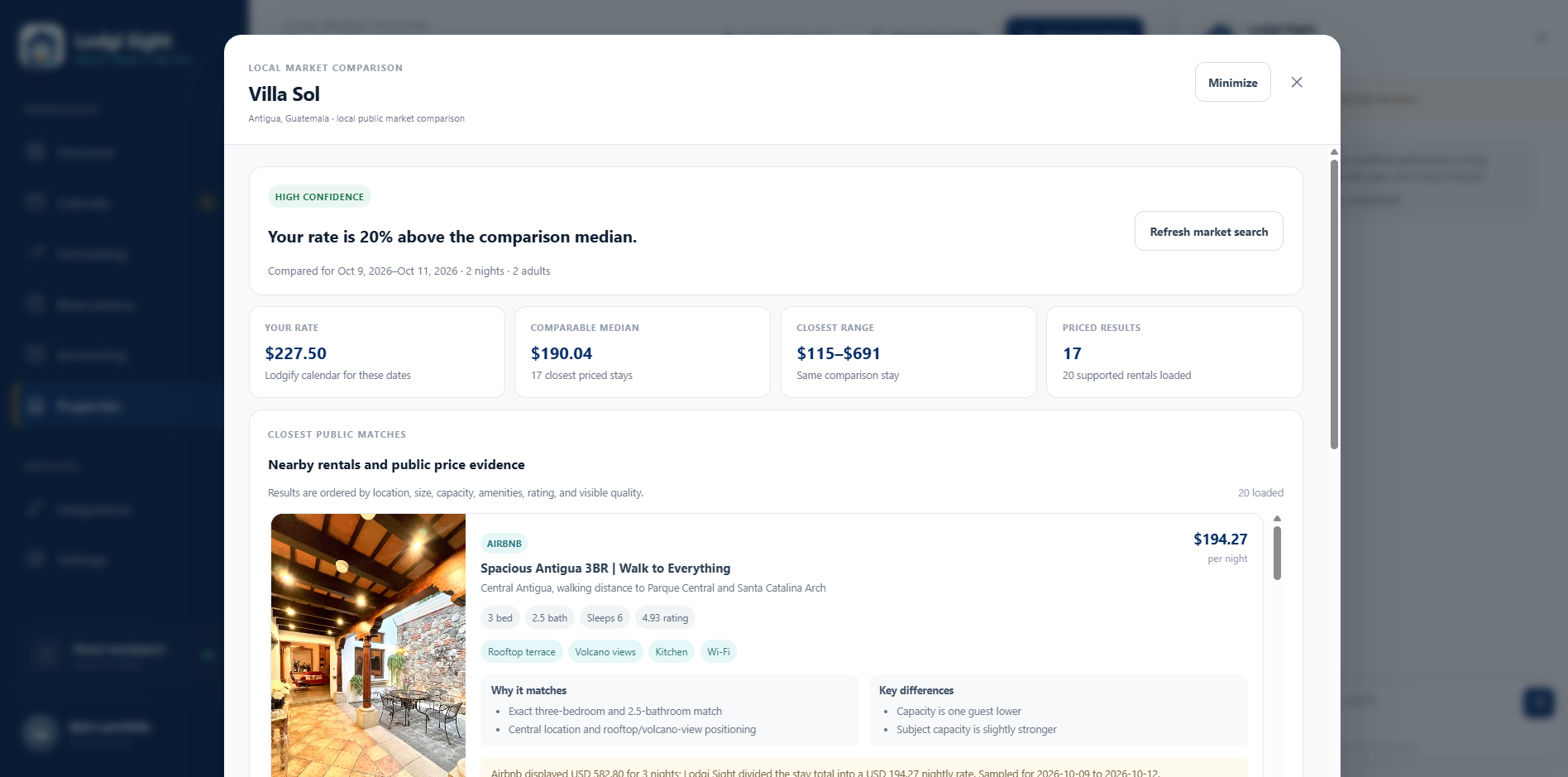
This feature compares your rental with public nearby stays, considering location, bedrooms, bathrooms, capacity, amenities, ratings, and visible quality.
- In Properties, choose Compare local market on the rental you want to review.
- Wait for the search. Select Minimize to keep using other parts of Lodgi Sight, then Open search to return. Minimizing does not cancel the running search.
- Read the comparison dates, stay length, guest count, and confidence at the top. The app selects the comparison stay; use the dates actually shown.
- Compare Your rate, Comparable median, Closest range, and Priced results.
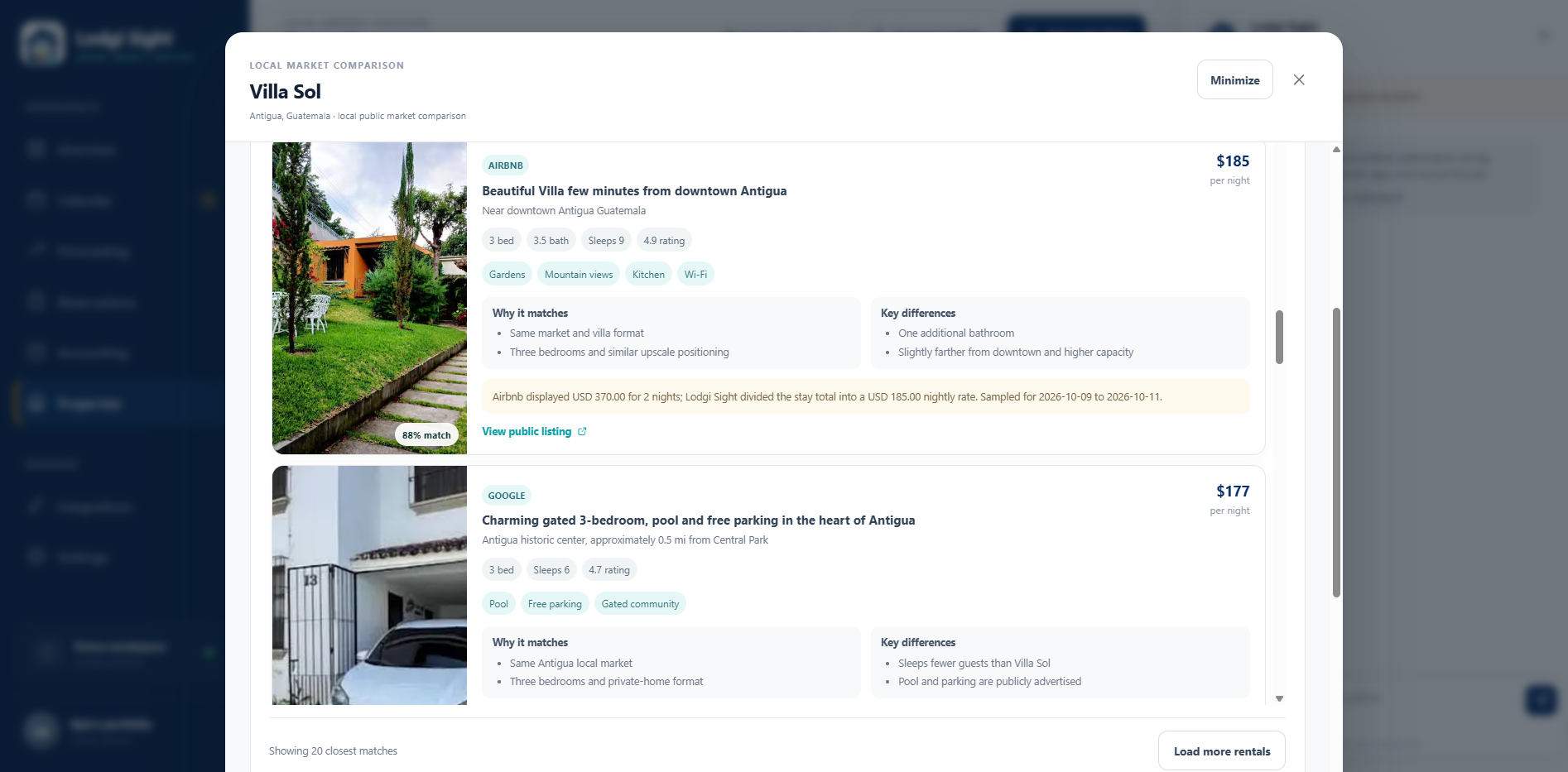
- Inspect individual rentals. Read Why it matches, Key differences, amenities, and price notes; follow View public listing to check the evidence.
- Read the positioning diagnosis, suggested actions, methodology, and caveats before deciding on a price change.
The app aims to find a useful set of nearby matches, but the number depends on available public evidence. Load more rentals requests additional results and may consume more AI usage. Only one market comparison search runs at a time in the workspace interface.
Read prices in context
The comparison median and range use usable public prices, not every listing in the feed. Some matches can remain visible with public price hidden. A source may show a stay total that is converted to an average nightly rate, or an alternate available stay when the original dates cannot be booked. The price notes identify these differences. Fees, taxes, availability, and minimum stays can affect comparability.
Being above the median is not automatically a reason to lower your price. A better location, more space, stronger amenities, or different stay dates may explain it. Public prices are observations at search time and can change.
Saved results and refreshing
Reopening an existing comparison can reuse a saved result without a new AI call. Public results can be cached for up to 24 hours. Refresh market search deliberately starts a new search and can consume usage. Refresh only when you need updated evidence, rather than repeatedly opening the same result.
View a local market comparison example
Ask Lodgi Sight
- Select Ask Lodgi Sight in the top bar to open the assistant panel.
- Enter a specific question about your portfolio, then select the send button.
- Read the response and check its figures against the relevant workspace page. Ask a focused follow-up if needed.
- Close the panel with its close button when you want more room for the workspace.
Context buttons such as Analyze gaps, Analyze reservations, and Review portfolio start a relevant question for you. The assistant uses portfolio context and Lodgi Sight’s calculations; its answer is only as current and complete as the available data.
Useful questions
- “Which calendar gaps should I prioritize, and why?”
- “Compare occupancy and ADR across my rentals.”
- “How much of the forecast is already booked?”
- “How is listing health calculated?”
Only responses that call the AI service reduce your usage allowance. Some standard explanations and local calculations can be answered without an AI call. Do not assume every message costs the same: longer or more complex analyses and public searches can use different amounts.
The assistant provides analysis and suggestions. It does not execute booking, pricing, or guest-messaging changes in Lodgify. Avoid entering passwords, API keys, payment details, or unnecessary guest information.
Track your usage and restore it
Open your profile card → Settings → Billing → Monthly usage allowance. The meter shows the percentage remaining and the reset date. It belongs to your workspace and is not a daily message count.
| Does not consume AI usage | Can consume AI usage |
|---|---|
| Opening dashboards, filtering reports, searching reservations, and browsing the calendar. | Assistant answers or contextual analyses that call the AI service. |
| Syncing Lodgify, calculating forecasts, applying accounting adjustments, and exporting PDF or CSV reports. | New local market searches, refreshing market searches, and loading more market results when AI is used. |
| Reading an already saved result and standard explanations handled locally. | Additional AI work requested in follow-up questions. |
What happens at 0%?
New AI-powered requests stop when the allowance is exhausted. While your trial or paid subscription is still active, the regular data views and local tools remain available. Running out of AI usage does not cancel your subscription. Signing out, reloading, or disconnecting and reconnecting Lodgify does not reset usage.
Three ways to regain AI usage
- Wait for renewal. A paid subscription’s allowance resets when its billing period renews. Use the reset date shown in Billing; it is not necessarily the first day of the calendar month.
- Buy a recharge. On a paid plan, recharge options normally become available at 0%. In Recharge your current plan, choose Restore 50% or Restore 100% where offered, review the price, and complete Paddle Checkout.
- Upgrade. Choose a higher plan in Billing. A successful immediate upgrade replaces the plan and resets the current AI allowance to the new plan’s allowance. Review the charge shown before confirming.
| Current plan | Restore 50% | Restore 100% |
|---|---|---|
| Starter | Not offered | $11.99 USD |
| Pro | $11.99 USD | $19.99 USD |
| Business | $15.00 USD | $27.99 USD |
Recharge percentages refer to your current plan’s included allowance. A Pro 100% recharge is larger than a Starter 100% recharge. Prices shown here are before applicable taxes; review Billing and the actual checkout amount before purchase.
Recharge usage lasts until the next subscription renewal and does not extend the billing period. Unused allowance and recharges do not roll over. A recharge does not change your plan or become a new recurring subscription. The card-free trial does not offer recharges.
After payment: allow the app time to receive payment confirmation and refresh Billing. If the meter has not updated, reload once and check your receipt before trying again. Contact support rather than buying a duplicate recharge.
Choose a plan, upgrade, or downgrade
Every plan includes all Lodgi Sight features. Higher plans provide larger AI allowances. Rental counts are recommendations to help choose a plan; your expected AI activity matters too.
| Plan | Monthly price | Recommended portfolio | AI allowance |
|---|---|---|---|
| Starter | $23.99 USD | 1–2 rentals | Standard |
| Pro | $39 USD | 3–5 rentals | 2× Starter |
| Business | $69 USD | 6+ rentals | 5× Starter |
Prices are before applicable taxes. Billing and checkout show the terms and amount for your purchase. Subscriptions renew monthly until cancelled.
Start a subscription
On the access screen or under Settings → Billing, choose the plan you want. Complete Paddle Checkout, return to Lodgi Sight, and wait for your subscription status to update. Connect Lodgify if you have not already done so.
Upgrade to a higher plan
- Open Settings → Billing and select Choose Pro or Choose Business, as appropriate.
- Read the confirmation showing when the change takes effect and Paddle’s calculated charge. Proration adjusts the cost for the remaining part of the current billing period.
- Confirm only after reviewing that amount. A successful upgrade takes effect immediately and resets the current AI usage allowance to the new plan’s level.
- Check the current plan, usage meter, and next billing date after the change finishes.
Downgrade to a lower plan
- Choose the lower plan in Billing.
- Review the confirmation. The downgrade is scheduled for the next renewal; there is no immediate charge, refund, or credit for scheduling it.
- Confirm. Your current paid plan and usage remain available until renewal.
- Check the scheduled plan and effective date in Billing. At renewal, the lower plan’s recurring price and usage allowance apply.
Change your mind about a scheduled downgrade
Select Cancel scheduled downgrade in Billing and confirm to keep your current plan at the next renewal. If you want a different plan instead, cancel the pending downgrade first, then choose the replacement plan. When Billing shows Downgrade finalizing, the renewal change can no longer be cancelled from this control; contact support if you need help.
Changing plans affects access allowances and billing. It does not edit your Lodgify rentals, reservations, or prices.
Payment details, invoices, and cancellation
Manage payment methods or view invoices
- Open Settings → Billing.
- Under Subscription management, select Manage billing.
- Use Paddle’s secure customer portal to review invoices and available payment-method controls. Return to Lodgi Sight when finished.
Cancel a subscription
- In Billing, choose Cancel subscription.
- Complete the cancellation steps in Paddle’s portal. Opening the portal alone does not cancel anything.
- Read the effective date and confirmation. A cancellation scheduled for the end of the paid period leaves access available until that date.
- Return to Billing and check for Cancellation scheduled and the subscription end date. If the display has not updated, allow time for confirmation, then refresh.
A scheduled cancellation stops future renewal. After paid access ends, choose a subscription to use the workspace again. Unused AI usage is not a separate extension of access. For a refund request, see the Refund Policy or contact support; cancelling is not itself a refund request.
These are separate actions: signing out ends your current session; disconnecting Lodgify removes the active integration; cancelling ends subscription renewal. None of them is an account-deletion request. Contact support for account or data deletion.
If a payment fails or Billing shows a past-due status, use Manage billing to review the payment method and resolve the issue. If a checkout or portal control is unavailable, follow the displayed message and contact support rather than creating another account or subscription.
Update your name, workspace, phone, or email
Name, workspace name, and phone
- Select your profile card at the bottom of the sidebar to open Settings.
- Choose My account.
- Edit Full name, Workspace name, or the optional Phone number.
- Select Save changes and wait for confirmation.
The workspace name labels your Lodgi Sight portfolio; it does not rename the rentals in Lodgify. Your initials and greeting update from your account name.
Change your account email
- In My account, enter the new Email address and select Save changes.
- The app sends an eight-digit verification code to your current email address. Keep access to that inbox while making the change.
- Enter the code in Verification code, then select Verify & save.
- Check the new email inbox and complete the confirmation requested there to finish the address change.
- Once the change is confirmed, use the new email for future sign-ins. Follow any additional confirmation message shown by the app.
If the code does not arrive, check spam and the address shown beside the verification prompt. Use Send a new code if needed and enter the latest one. Do not treat “Changes saved” as a substitute for completing new-address confirmation.
Changing the account email does not create a new workspace, restart the trial, or restore usage. If you no longer have access to the current inbox, contact support@lodgisight.com for help. Do not send a password or verification code to support.
Change a password or recover sign-in
Change your password while signed in
- Go to Settings → My account → Change password.
- Enter your Current password, a New password of at least eight characters, and the matching confirmation.
- Select Update password. An eight-digit verification code is sent to your current account email.
- Enter that code and select Verify & update password.
- Wait for Password updated, then use the new password for future sign-ins.
Use the eye control where available to show or hide a password while checking what you typed. Choose a unique password and avoid sharing your account credentials.
Forgot your password?
- Open the sign-in page and select Forgot password?.
- Enter your account email and choose Send reset link.
- Open the reset link from your inbox. If it is invalid or expired, request a new link and use the newest email.
- Enter and confirm a new password, select Update password, and follow the sign-in prompt.
The reset screen uses a general confirmation message; seeing it does not prove an account exists for a mistyped email. If no email arrives, check the spelling and spam folder before requesting another link.
Sign out
Use Settings → My account → Sign out when you are finished, especially on a shared device. Signing out does not cancel billing or disconnect the saved Lodgify integration.
A useful routine
- Start with fresh data. Check the connection and sync status. Refresh after important changes in Lodgify.
- Scan Overview. Compare revenue, occupancy, and ADR for a consistent reporting period. Inspect the rentals or channels driving a change.
- Review near-term availability. Use Calendar to find stay-rule conflicts and pricing opportunities. Ask a specific AI question only when you need more interpretation.
- Check the forward outlook. In Forecasting, separate already booked revenue from estimated pickup and read the confidence level.
- Research before changing rates. Use a property’s market comparison when useful, inspect the public evidence, then apply your chosen changes in Lodgify.
- Review reports. Open the latest automatically generated report in Saved reports, or generate one with your chosen date basis and filters. Review deductions, save any edits, and export the PDF or CSV.
- Review usage and billing. Check the allowance and renewal date before a period of heavy AI analysis. Upgrade for ongoing higher usage or recharge for an occasional need.
Troubleshooting and support
My workspace is empty
Confirm that your trial or subscription is active and Lodgify shows Connected. New customer accounts contain no sample rentals. Run a sync and review any warning; an empty imported portfolio can also mean the connected Lodgify account has no accessible rentals or bookings.
My data looks out of date, or a sync failed
Use the top-bar refresh control and check its result. If the key was replaced or revoked, reconnect using the current key. Verify the record in Lodgify itself. Missing itemized channel data cannot be recovered by repeatedly refreshing if Lodgify only supplies a total.
My report is empty or downloads are disabled
Check the rental, selected channels, date basis, and date range. Cancelled reservations are excluded. After changing any filter for a new report, select Generate report again. Fix any invalid deduction or adjustment before downloading.
My scheduled report has not appeared
In Recurring reports, check that the schedule is active and review Next run, the last generation date, and any Last run needs attention message. A first-day schedule covers the previous completed month. Check your Lodgify connection and that your trial or subscription is active. If the run still needs attention, send the displayed error and schedule name to support.
My saved report does not show newer bookings
Saved reports preserve the reservation data from when they were generated. Edit report lets you rename the report and revise payout adjustments. To include newer Lodgify data or change the reporting filters, generate and save a new report.
The market comparison has few matches or no price
Review its confidence, source notes, dates, and missing data. Public sites sometimes hide prices or have no comparable availability. Hidden prices are excluded from price benchmarks; do not treat them as zero. A fresh search may help when evidence has changed, but uses AI allowance and cannot guarantee more results.
I paid, but my plan or usage has not changed
Check whether checkout completed and whether you have a receipt. Allow time for confirmation, then reload Billing. For a scheduled downgrade, the current plan correctly remains in place until renewal. If an immediate upgrade or recharge is still missing, contact support with the receipt or transaction reference; avoid paying again.
I cannot receive a verification or reset email
Check spam, confirm the email shown, and use the latest message after requesting a replacement. For an account-email change, first verify the current inbox and then confirm the new one. If you cannot access the current inbox, ask support for recovery help.
Get help
Email support@lodgisight.com for account, connection, usage, or billing assistance. For plan selection and sales questions, email sales@lodgisight.com.
Include your account email, the page or feature, the steps you took, the exact error, and approximately when it happened. For billing, include the transaction reference if available. Redact guest information from screenshots and never include an API key, password, verification code, or full payment-card number.
Back to the top ↑